Three.js 打造 3D 地球:从零开始的 WebGL 之旅
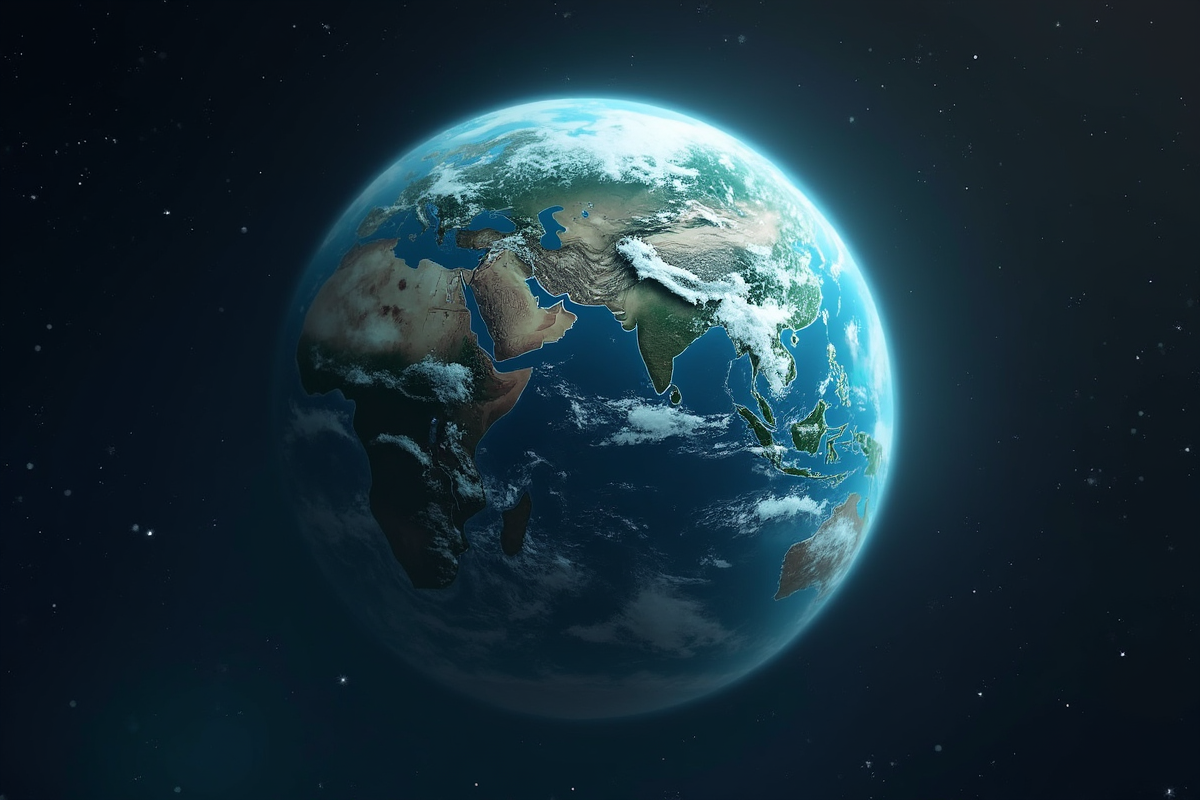
Three.js 打造 3D 地球:从零开始的 WebGL 之旅
引言:Web 3D 开发的新纪元
想象一下,你只需几行代码,就能在网页上创建一个可交互的 3D 地球模型!
Three.js 是目前最流行的 WebGL 3D 库,它让创建 3D 图形变得简单而强大。今天这篇教程将带你从零开始,用 Three.js 打造一个逼真的 3D 地球模型。
第一章:Three.js 基础
1.1 什么是 Three.js?
Three.js 是一个 JavaScript 3D 库,特点:
- 基于 WebGL 渲染
- 跨浏览器支持
- 简单易用的 API
- 强大的扩展性
- 活跃的社区
1.2 核心概念
┌─────────────────────────────────────────┐
│           Three.js 基础架构              │
├─────────────────────────────────────────┤
│  Scene(场景)                          │
│  ├─ Camera(摄像机)                    │
│  │  └─ Renderer(渲染器)              │
│  └─ Objects(对象)                     │
│     ├─ Geometry(几何体)               │
│     ├─ Material(材质)                 │
│     └─ Mesh(网格)                     │
└─────────────────────────────────────────┘
1.3 快速开始
“`html
第二章:3D 地球创建

2.1 基础地球模型
javascript
// 创建 3D 地球
function createEarth() {
// 创建球体几何体
const geometry = new THREE.SphereGeometry(5, 64, 64);
// 创建材质
const material = new THREE.MeshPhongMaterial({
color: 0x2233ff, // 蓝色
shininess: 20
});
// 创建网格
const earth = new THREE.Mesh(geometry, material);
return earth;
}
// 添加到场景
const earth = createEarth();
scene.add(earth);
2.2 添加地球材质
javascript
// 加载地球纹理
function loadEarthTextures() {
const textureLoader = new THREE.TextureLoader();
// 颜色贴图
const colorTexture = textureLoader.load(‘earth_color.jpg’);
// 法线贴图(用于光影效果)
const normalTexture = textureLoader.load(‘earth_normal.jpg’);
// 高光贴图(控制反光区域)
const specularTexture = textureLoader.load(‘earth_specular.jpg’);
// 凹凸贴图(增加细节)
const bumpTexture = textureLoader.load(‘earth_bump.jpg’);
// 星空背景
const starTexture = textureLoader.load(‘starfield.jpg’);
return {
colorTexture,
normalTexture,
specularTexture,
bumpTexture,
starTexture
};
}
// 创建带有纹理的地球
function createTexturedEarth() {
const textures = loadEarthTextures();
const geometry = new THREE.SphereGeometry(5, 64, 64);
const material = new THREE.MeshPhongMaterial({
map: textures.colorTexture,
normalMap: textures.normalTexture,
specularMap: textures.specularTexture,
bumpMap: textures.bumpTexture,
bumpScale: 0.1,
specular: new THREE.Color(0x333333),
shininess: 15
});
return new THREE.Mesh(geometry, material);
}
2.3 大气层效果
javascript
// 创建大气层
function createAtmosphere() {
// 创建稍大的球体作为大气层
const geometry = new THREE.SphereGeometry(5.1, 64, 64);
// 使用自定义着色器
const atmosphereShader = {
vertexShader: `
varying vec3 vNormal;
void main() {
vNormal = normalize(normalMatrix * normal);
gl_Position = projectionMatrix * modelViewMatrix * vec4(position, 1.0);
}
`,
fragmentShader: `
varying vec3 vNormal;
void main() {
float intensity = pow(0.6 – dot(vNormal, vec3(0, 0, 1.0)), 4.0);
gl_FragColor = vec4(0.3, 0.6, 1.0, 1.0) * intensity;
}
`
};
const material = new THREE.ShaderMaterial({
vertexShader: atmosphereShader.vertexShader,
fragmentShader: atmosphereShader.fragmentShader,
blending: THREE.AdditiveBlending,
side: THREE.BackSide,
transparent: true
});
return new THREE.Mesh(geometry, material);
}
// 添加到场景
const earth = createTexturedEarth();
const atmosphere = createAtmosphere();
scene.add(earth);
scene.add(atmosphere);
2.4 云层效果
javascript
// 创建云层
function createClouds() {
const geometry = new THREE.SphereGeometry(5.05, 64, 64);
// 加载云层纹理
const cloudTexture = new THREE.TextureLoader().load(‘clouds.png’);
const material = new THREE.MeshPhongMaterial({
map: cloudTexture,
transparent: true,
opacity: 0.8,
blending: THREE.AdditiveBlending,
side: THREE.DoubleSide
});
const clouds = new THREE.Mesh(geometry, material);
return clouds;
}
// 地球组
const earthGroup = new THREE.Group();
earthGroup.add(earth);
earthGroup.add(createClouds());
scene.add(earthGroup);
第三章:光照和渲染

3.1 添加光源
javascript
// 添加光照
function setupLighting() {
// 环境光
const ambientLight = new THREE.AmbientLight(0x333333);
scene.add(ambientLight);
// 平行光(模拟太阳)
const sunLight = new THREE.DirectionalLight(0xffffff, 1.5);
sunLight.position.set(10, 5, 10);
scene.add(sunLight);
// 添加光晕
const sunGlow = new THREE.PointLight(0xffff00, 2, 100);
sunGlow.position.set(15, 5, 15);
scene.add(sunGlow);
}
setupLighting();
3.2 星空背景
javascript
// 创建星空
function createStarfield() {
const geometry = new THREE.BufferGeometry();
const vertices = [];
// 生成随机星星
for (let i = 0; i < 5000; i++) {
const x = (Math.random() - 0.5) * 2000;
const y = (Math.random() - 0.5) * 2000;
const z = (Math.random() - 0.5) * 2000;
vertices.push(x, y, z);
}
geometry.setAttribute('position', new THREE.Float32BufferAttribute(vertices, 3));
const material = new THREE.PointsMaterial({
color: 0xffffff,
size: 0.5,
sizeAttenuation: true
});
const stars = new THREE.Points(geometry, material);
return stars;
}
scene.add(createStarfield());
3.3 渲染优化
javascript
// 优化渲染设置
const renderer = new THREE.WebGLRenderer({
antialias: true, // 抗锯齿
alpha: true, // 透明背景
powerPreference: ‘high-performance’ // 性能优先
});
renderer.setPixelRatio(window.devicePixelRatio); // 高 DPI 支持
renderer.setSize(window.innerWidth, window.innerHeight);
renderer.setClearColor(0x000000, 0); // 透明背景
renderer.shadowMap.enabled = true; // 启用阴影
renderer.shadowMap.type = THREE.PCFSoftShadowMap; // 柔和阴影
// 后处理效果
import { EffectComposer } from ‘three/examples/jsm/postprocessing/EffectComposer’;
import { RenderPass } from ‘three/examples/jsm/postprocessing/RenderPass’;
import { UnrealBloomPass } from ‘three/examples/jsm/postprocessing/UnrealBloomPass’;
const composer = new EffectComposer(renderer);
const renderPass = new RenderPass(scene, camera);
composer.addPass(renderPass);
const bloomPass = new UnrealBloomPass(
new THREE.Vector2(window.innerWidth, window.innerHeight),
1.5, // 强度
0.4, // 半径
0.85 // 阈值
);
composer.addPass(bloomPass);
function animate() {
requestAnimationFrame(animate);
// 使用 composer 渲染
composer.render();
}
第四章:动画和交互

4.1 地球自转动画
javascript
// 地球自转
function animateEarth() {
earthGroup.rotation.y += 0.002; // 自转速度
// 云层自转(稍微快一点)
const clouds = earthGroup.children.find(child => child !== earth);
if (clouds) {
clouds.rotation.y += 0.0025;
}
}
// 主循环
function animate() {
requestAnimationFrame(animate);
animateEarth();
renderer.render(scene, camera);
}
animate();
4.2 摄像机控制
javascript
// 使用 OrbitControls
import { OrbitControls } from ‘three/examples/jsm/controls/OrbitControls’;
const controls = new OrbitControls(camera, renderer.domElement);
controls.enableDamping = true; // 惯性效果
controls.dampingFactor = 0.05;
controls.rotateSpeed = 0.5;
controls.enablePan = false; // 禁用平移
controls.minDistance = 7; // 最近距离
controls.maxDistance = 50; // 最远距离
controls.enableZoom = true; // 启用缩放
4.3 鼠标交互
javascript
// 射线检测实现点击交互
const raycaster = new THREE.Raycaster();
const mouse = new THREE.Vector2();
window.addEventListener(‘mousemove’, (event) => {
mouse.x = (event.clientX / window.innerWidth) * 2 – 1;
mouse.y = -(event.clientY / window.innerHeight) * 2 + 1;
});
window.addEventListener(‘click’, (event) => {
raycaster.setFromCamera(mouse, camera);
const intersects = raycaster.intersectObjects([earth]);
if (intersects.length > 0) {
console.log(‘点击了地球:’, intersects[0].point);
}
});
4.4 轨道动画
javascript
// 创建卫星
function createSatellite() {
const geometry = new THREE.BoxGeometry(0.3, 0.3, 0.5);
const material = new THREE.MeshPhongMaterial({ color: 0x00ff00 });
const satellite = new THREE.Mesh(geometry, material);
// 创建轨道组
satellite.position.x = 8;
return satellite;
}
const satellite = createSatellite();
earthGroup.add(satellite);
// 卫星动画
function animateSatellite() {
const time = Date.now() * 0.001;
const radius = 8;
satellite.position.x = radius * Math.cos(time);
satellite.position.z = radius * Math.sin(time);
satellite.lookAt(earthGroup.position);
}
function animate() {
requestAnimationFrame(animate);
animateEarth();
animateSatellite();
renderer.render(scene, camera);
}
第五章:性能优化技巧

5.1 几何体优化
javascript
// 使用 LOD(多细节层次)
const lod = new THREE.LevelOfDetail(0);
// 近距离:高精度模型
const highPoly = new THREE.Mesh(
new THREE.SphereGeometry(5, 128, 128),
earthMaterial
);
// 中距离:中等精度
const mediumPoly = new THREE.Mesh(
new THREE.SphereGeometry(5, 64, 64),
earthMaterial
);
// 远距离:低精度
const lowPoly = new THREE.Mesh(
new THREE.SphereGeometry(5, 32, 32),
earthMaterial
);
lod.addLevel(highPoly, 0);
lod.addLevel(mediumPoly, 10);
lod.addLevel(lowPoly, 50);
scene.add(lod);
// 使用 InstancedMesh 批量渲染
const count = 1000;
const geometry = new THREE.BoxGeometry(0.1, 0.1, 0.1);
const material = new THREE.MeshPhongMaterial({ color: 0x00ff00 });
const mesh = new THREE.InstancedMesh(geometry, material, count);
const dummy = new THREE.Object3D();
for (let i = 0; i < count; i++) {
dummy.position.set(
(Math.random() - 0.5) * 100,
(Math.random() - 0.5) * 100,
(Math.random() - 0.5) * 100
);
dummy.updateMatrix();
mesh.setMatrixAt(i, dummy.matrix);
}
scene.add(mesh);
5.2 纹理优化
javascript
// 压缩纹理
const textureLoader = new THREE.TextureLoader();
// 使用压缩格式
const compressedTexture = textureLoader.load(
‘earth_texture.png’,
(texture) => {
texture.minFilter = THREE.LinearFilter;
texture.magFilter = THREE.LinearFilter;
texture.wrapS = THREE.ClampToEdgeWrapping;
texture.wrapT = THREE.ClampToEdgeWrapping;
}
);
// 使用 mipmap
compressedTexture.generateMipmaps = true;
// 减少纹理分辨率
const lowResTexture = new THREE.TextureLoader().load(
‘earth_lowres.jpg’,
null,
null,
(err) => {
console.log(‘纹理加载错误:’, err);
}
);
5.3 渲染优化
javascript
// 控制渲染频率
let lastTime = 0;
const maxFPS = 60;
const interval = 1000 / maxFPS;
function animate(currentTime) {
requestAnimationFrame(animate);
const deltaTime = currentTime – lastTime;
if (deltaTime >= interval) {
// 更新逻辑
animateEarth();
animateSatellite();
// 渲染
renderer.render(scene, camera);
lastTime = currentTime;
}
}
// 使用 renderer.autoClear
renderer.autoClear = false;
// 清除特定区域
function render() {
renderer.render(scene, camera);
}
5.4 内存优化
javascript
// 移除不需要的对象
function cleanup() {
// 移除几何体
geometry.dispose();
// 移除材质
material.dispose();
// 移除纹理
texture.dispose();
// 移除场景
scene.clear();
// 销毁 WebGL 上下文
renderer.dispose();
}
// 定期检查内存使用
function checkMemoryUsage() {
if (performance.memory) {
const usedHeap = performance.memory.usedJSHeapSize;
const totalHeap = performance.memory.totalJSHeapSize;
console.log(`
已使用内存:${(usedHeap / 1024 / 1024).toFixed(2)} MB
总内存:${(totalHeap / 1024 / 1024).toFixed(2)} MB
使用率:${(usedHeap / totalHeap * 100).toFixed(2)}%
`);
}
}
第六章:完整项目实战

6.1 完整地球项目结构
project/
├── index.html
├── js/
│ ├── main.js
│ ├── earth.js
│ ├── controls.js
│ └── utils.js
├── textures/
│ ├── earth_color.jpg
│ ├── earth_normal.jpg
│ ├── earth_specular.jpg
│ ├── clouds.png
│ └── starfield.jpg
└── styles/
└── main.css
6.2 完整代码示例
html
3D 地球
拖动旋转 | 滚轮缩放 | 右键平移
“`
总结:Three.js 无限可能
Three.js 让你能够轻松创建令人惊叹的 3D 体验:
核心优势:
- 简单易用:学习曲线平缓
- 功能强大:支持各种 3D 功能
- 性能优秀:利用 WebGL 硬件加速
- 社区活跃:丰富的资源和插件
- ✅ 使用 LOD 技术
- ✅ 优化几何体复杂度
- ✅ 压缩纹理资源
- ✅ 控制渲染频率
- ✅ 合理管理内存
- 掌握 Three.js 基础概念
- 学习几何体和材质
- 了解光照和阴影
- 掌握动画和交互
- 学习性能优化
- [Three.js 官方文档](https://threejs.org/docs/)
- [Three.js Examples](https://threejs.org/examples/)
- [Three.js GitHub](https://github.com/mrdoob/three.js)
- [Three.js Fundamentals](https://threejsfundamentals.org/)
性能优化要点:
学习路径:
开始你的 3D Web 开发之旅,创造令人惊叹的视觉效果!🚀
—
参考资源:


发表评论